AI photo editors look impressive in ads but real design work is different.
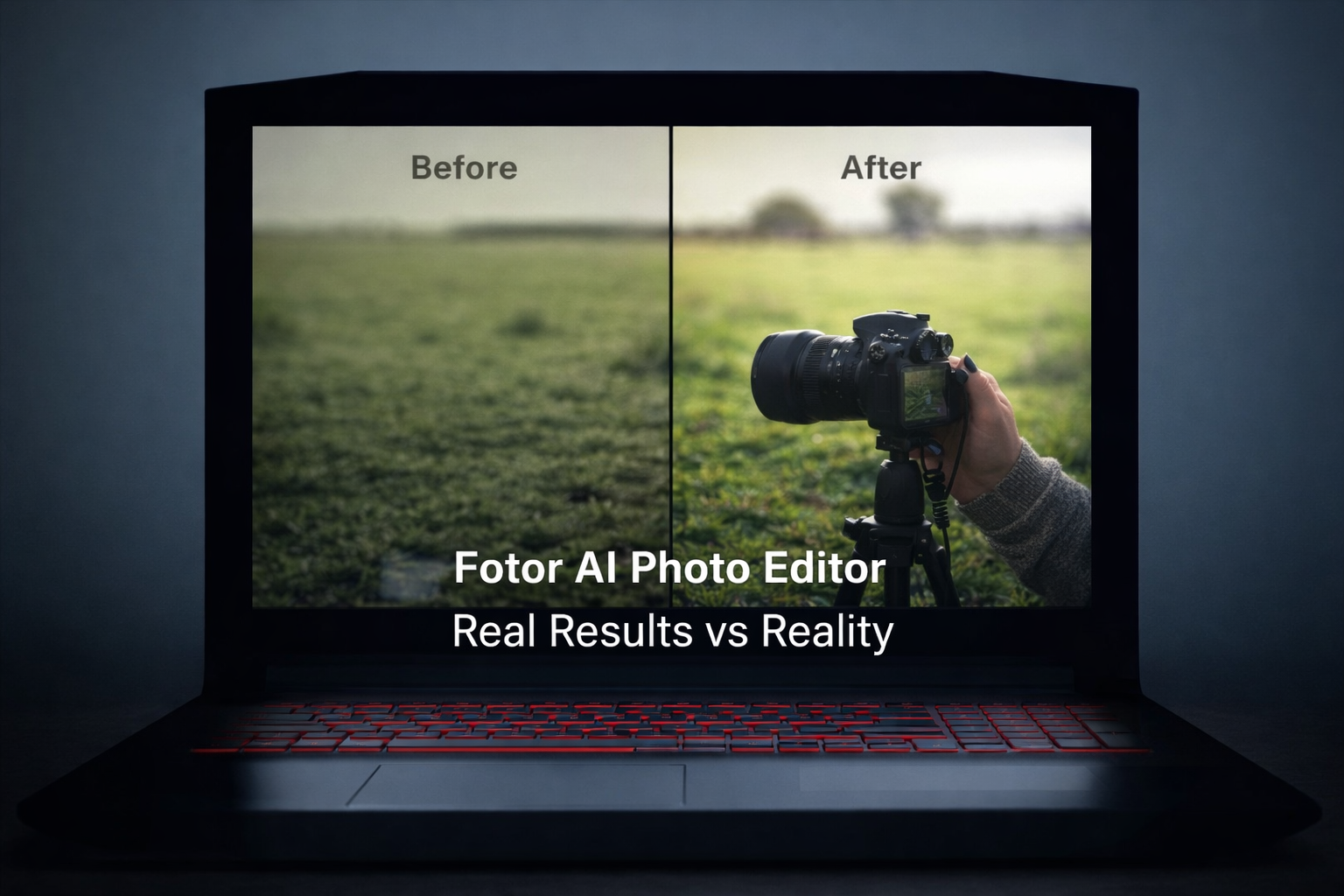
Before trusting any tool, we tested the fotor ai photo editor on actual design tasks to see if it truly helps or just adds noise.
This review is based on hands-on use, not feature lists.
The goal is simple: does it save time in real projects, or not?
Why We Tested Fotor AI Photo Editor in Real Design Work
Many designers face the same problem:
- Too many AI tools
- Big promises
- Mixed real results
Instead of guessing, we used Fotor AI in real workflows like social posts, blog images, and quick client visuals.
That’s the only way to judge the Fotor’s AI editor fairly.
ALSO READ
DALL·E 3 in Practice: Where It Works and Where It Fails
Real Design Tasks We Used for Testing
We focused on tasks designers actually do, not demos.
Tasks included:
- Image enhancement for blog headers
- Background removal for product images
- Social media visuals
- Quick photo edits for marketing drafts
These are common, time-sensitive jobs.
Where Fotor AI Photo Editor Actually Works Well
This is where the tool shows value.
1. Quick Image Enhancements
For basic edits, Fotor AI performs well.
It helps with:
- Auto-enhancing dull images
- Fixing lighting issues
- Improving clarity fast
For content teams, this saves real time.
2. Background Removal for Simple Images
The AI background remover works best when:
- The subject is clear
- The background is not complex
In these cases, the Fotor’s AI editor gives usable results without much cleanup.
3. Fast Visuals for Social Media
For quick social posts, the tool is helpful.
Designers use it to:
- Resize images
- Add simple text
- Prepare drafts quickly
It’s good for speed, not perfection.
Where Fotor AI Photo Editor Struggles
This is where expectations need to be realistic.
1. Brand Consistency Issues
Fotor AI struggles with:
- Exact brand colors
- Repeating the same visual style
- Matching long-term brand identity
For brand-heavy projects, manual control is still needed.
2. Limited Control for Advanced Design
Professional designers often need:
- Layer-level control
- Precise adjustments
- Custom typography
The fotor ai photo editor is not built for deep design work.
3. Not Ideal for Final Client Delivery
Most teams we observed follow this rule:
Use Fotor AI for drafts, not final assets.
It’s a helper, not a replacement for design software.
How Designers Actually Use Fotor AI in Practice
Successful workflows look like this:
- Use Fotor AI for quick edits or ideas
- Export the result
- Finish the design manually
- Review before delivery
This keeps quality high while saving time.
Fotor AI Photo Editor vs Traditional Photo Editing
| Task | Fotor AI | Manual Editing |
|---|---|---|
| Speed | Fast | Slower |
| Control | Limited | Full |
| Brand accuracy | Weak | Strong |
| Final polish | Risky | Reliable |
The best results come from combining both.
Is Fotor AI Photo Editor Worth Using?
Yes if you use it correctly.
It’s worth using if you:
- Create lots of content visuals
- Need quick image edits
- Work under tight deadlines
It’s not ideal if you:
- Deliver brand-critical designs
- Need full creative control
- Expect perfect results from AI
Understanding this makes the fotor ai photo editor useful, not frustrating.
ALSO READ
How Canva’s AI Performs in Real Design Projects (My Experience)
Conclusion
Fotor AI is not magic, but it’s not useless either.
It works best as a time-saving assistant, not a full design solution.
If you treat it as a draft tool and keep human review in place,
the fotor ai photo editor can speed up real design work without hurting quality.
Use it wisely and it can earn a place in your workflow.
FAQs
A. It works best for quick image edits, enhancements, and social media visuals.
A. No. It supports designers but cannot replace creative judgment or brand control.
A. It’s useful for drafts and previews, but final assets still need manual review.
A. Yes, especially for repetitive or simple photo editing tasks.
A. Yes, but human review is still essential for quality and accuracy.