Design deadlines don’t wait and clients don’t accept excuses.
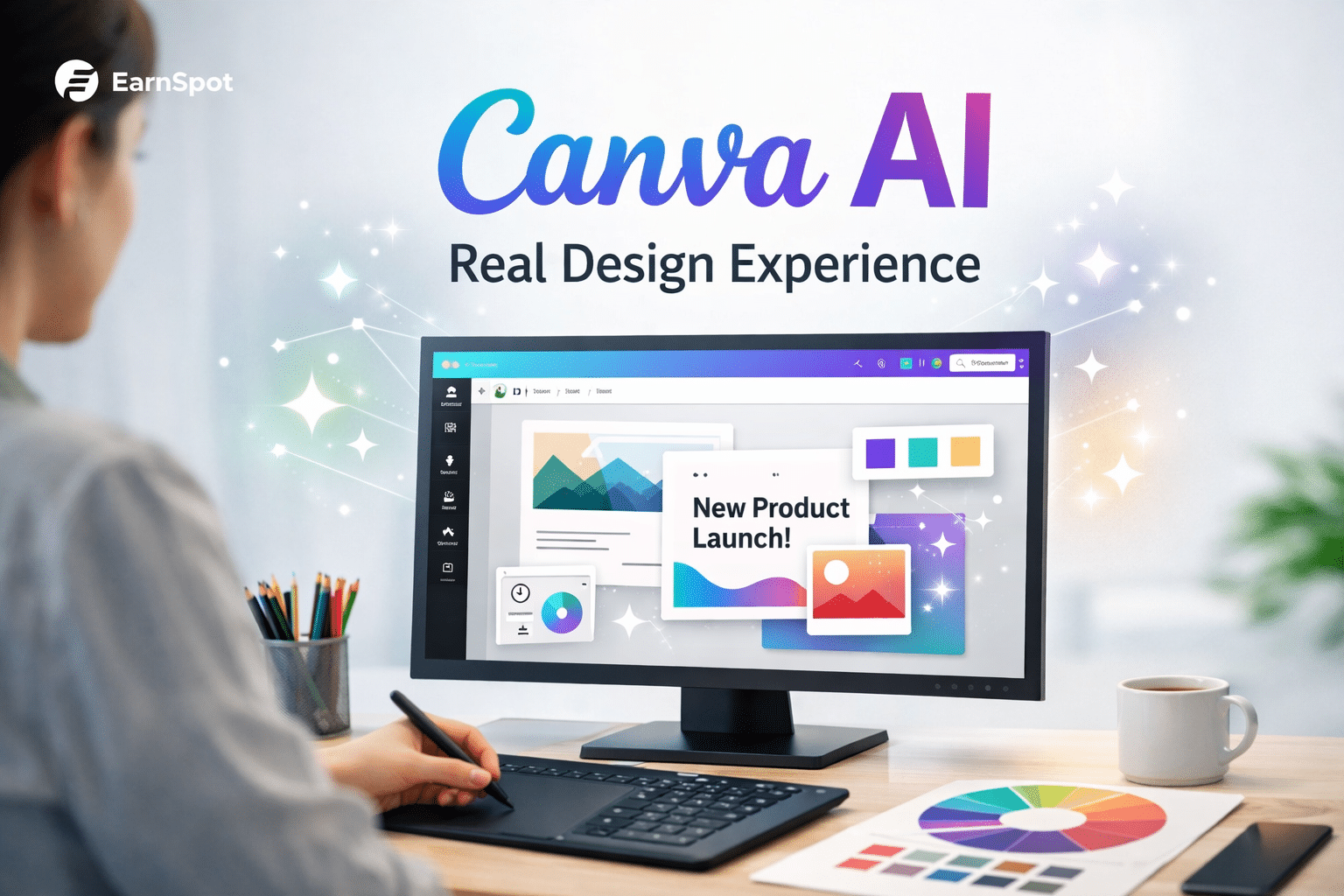
When I first tested Canva AI features on real design projects, I wanted one answer: Can this actually handle professional work?
I’ve used Canva for client projects, internal brand work, and fast marketing designs. This article shares real experience, not theory what worked, what failed, and where Canva’s AI truly fits in today’s design workflow.
Why Designers Are Turning to Canva AI Features
Canva added AI to solve a real problem: speed.
Designers and marketers use it because:
- Projects move fast
- Budgets are tight
- Non-designers need usable tools
For many teams, Canva AI feels like a shortcut.
But shortcuts only work if the results hold up.
ALSO READ
Can AI Really Create Professional Logos? Real Tests & Results
How I Tested Canva AI on Real Design Projects
To stay honest, I tested Canva AI on real tasks, not demo examples.
Project Types Tested
- Social media graphics
- Marketing banners
- Blog featured images
- Brand visuals for small businesses
Each design was judged on:
- Visual quality
- Brand consistency
- Customization level
- Time saved vs effort spent
This helped reveal where Canva AI features shine—and where they struggle.
Canva AI Features That Actually Perform Well
Some Canva AI tools genuinely help in daily work.
Features That Save Time
- Magic Design for quick layout ideas
- Text-to-image for placeholders and concepts
- Background remover for fast edits
- Auto resize for multi-platform content
For fast marketing visuals, these features reduce workload.
Where Canva AI Falls Short in Professional Design
This is where expectations matter.
Limitations I Faced
- Designs can look repetitive
- Limited control over fine details
- Weak support for complex brand systems
- AI images often need manual cleanup
They assist, but they don’t replace design judgment.
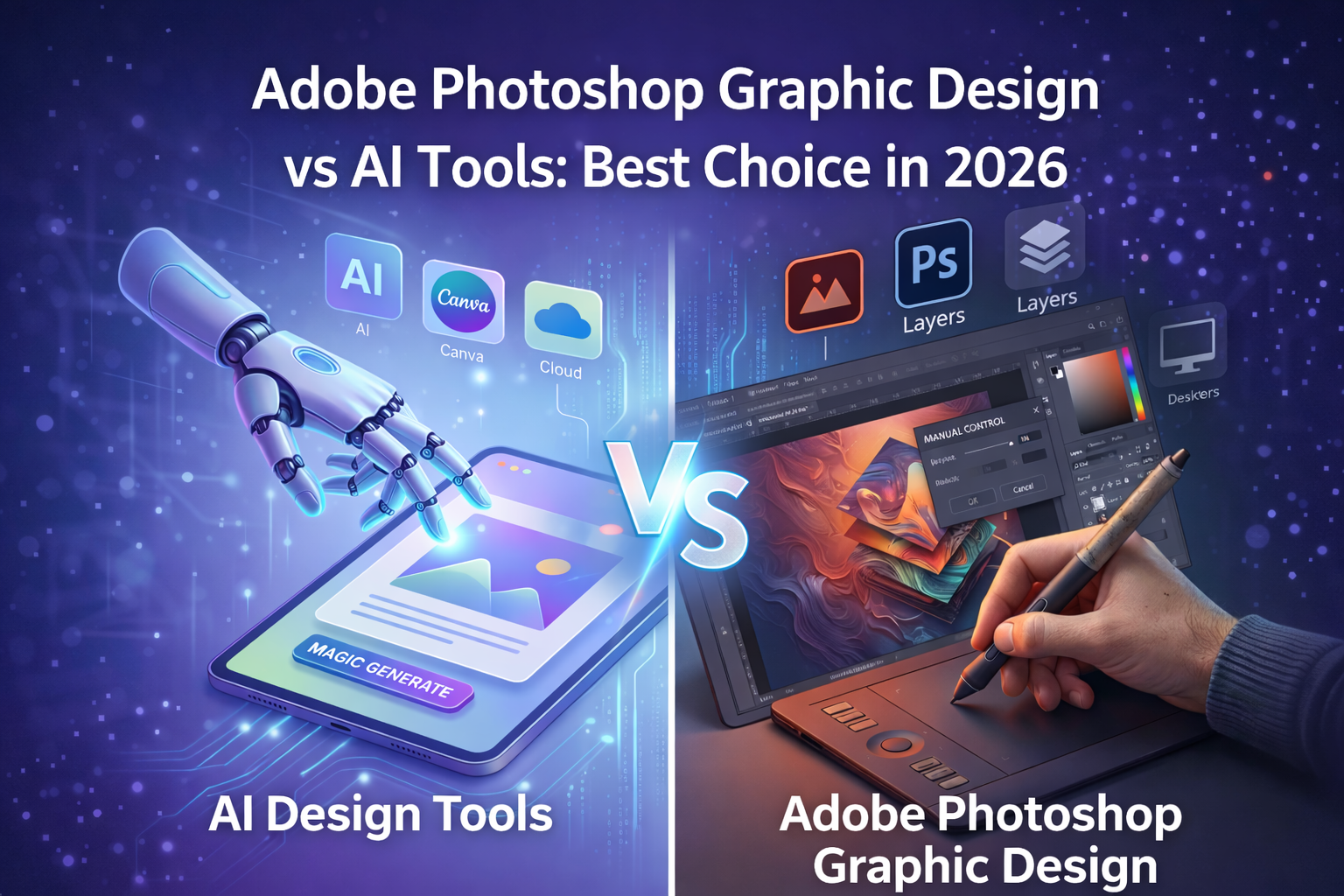
Canva AI vs Professional Design Tools
| Area | Canva AI | Pro Design Tools |
|---|---|---|
| Speed | Very fast | Moderate |
| Flexibility | Limited | High |
| Brand Control | Basic | Advanced |
| Learning Curve | Easy | Steep |
| Best Use | Marketing visuals | Brand identity |
Canva AI features work best inside clear boundaries.
Best Way to Use Canva AI in Real Projects
From experience, this workflow works best:
Smart Design Workflow
- Use Canva AI for ideas and drafts
- Choose one strong layout
- Customize fonts, spacing, and colors
- Final check for brand consistency
This keeps quality high while saving time.
When Canva AI Is a Bad Choice
Avoid relying only on Canva AI when:
- Designing full brand identities
- Creating high-end client logos
- Working with strict brand guidelines
- Handling print-heavy projects
In these cases, precision matters more than speed.
ALSO READ
AI Tools for Graphic Design: A Beginner’s Guide (2026 Update)
Real Verdict: Are Canva AI Features Worth Using?
Yes but only when used correctly.
Canva AI features are excellent assistants, not full designers.
They help teams move faster, but humans still make final decisions.
Used smartly, Canva AI boosts productivity without hurting quality.
Conclusion
Canva AI features perform well for real design projects when speed matters and expectations are clear.
They are tools—not replacements.
If you treat Canva AI as a helper, not a designer, it becomes a powerful part of your workflow.
FAQs
A. Yes, for marketing visuals and quick projects—not for full brand identities.
A. No. It supports designers but cannot replace creative judgment.
A. Yes, especially for social media and content graphics.
A. Not always. Customization is needed to avoid generic looks.
A. Marketers, small teams, and non-designers working on fast content.